SLAs (Service Level Agreements) set response and resolution targets for your tickets. In cStar, they also feed directly into the gamification system. Beat your targets and earn bonus XP.
How SLAs Work
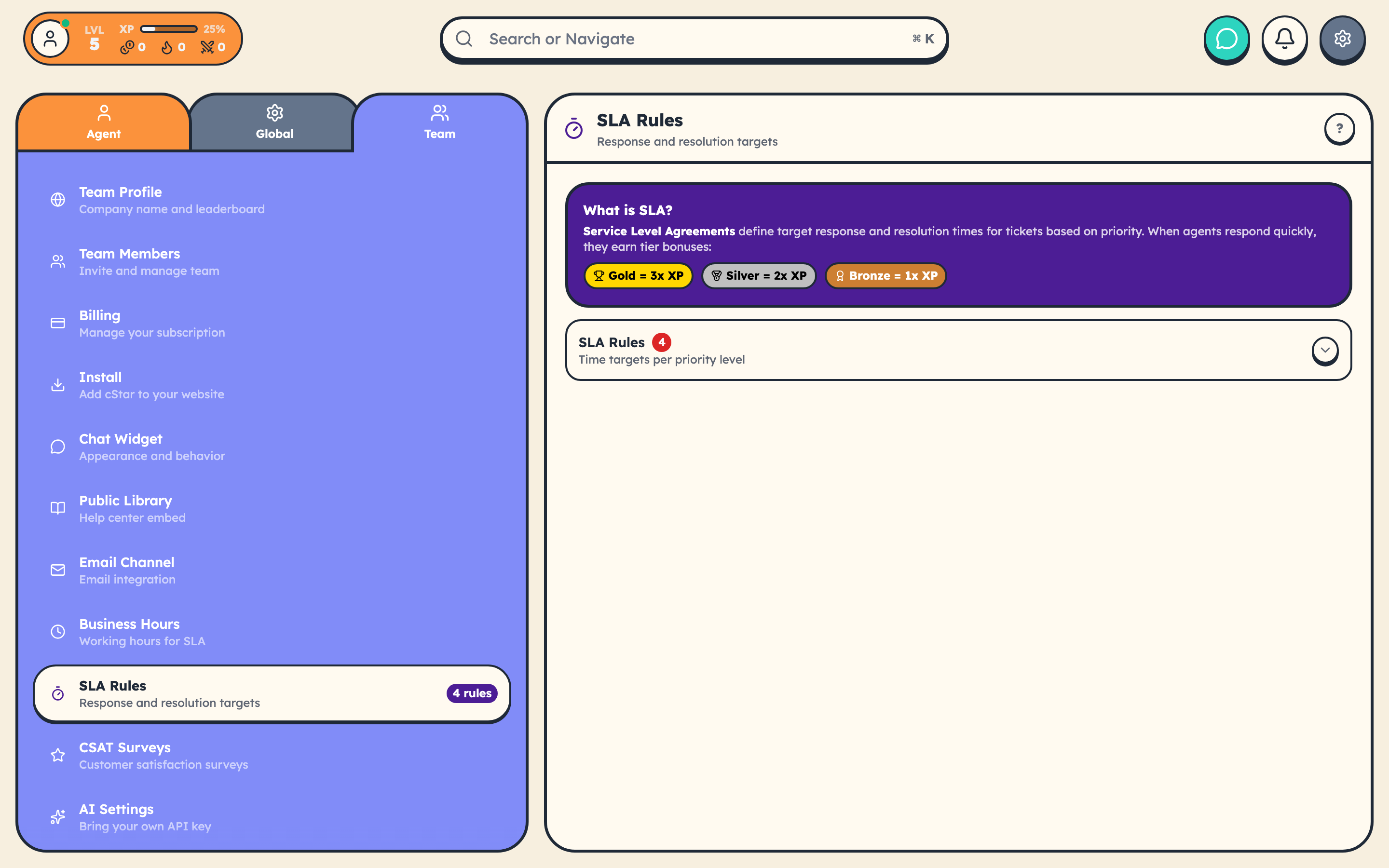
Every ticket tracks two timers:
- First Response Time: how quickly you send the first reply
- Resolution Time: how long until the ticket is closed
Targets are set per priority in Settings → Team → SLA Rules. Each rule defines the response and resolution time in minutes, and whether to use 24/7 scheduling or respect your business hours.
Default Targets
| Priority | First Response | Resolution |
|---|---|---|
| Urgent | 1 hour | 4 hours |
| High | 4 hours | 24 hours |
| Normal | 8 hours | 48 hours |
| Low | 24 hours | 72 hours |
These are starting points. Adjust them in Settings to match what your team can actually deliver.
Performance Tiers
Beat the target, earn more XP. The tier multiplier applies to the XP your ticket pays out:
| Tier | How | XP Multiplier |
|---|---|---|
| Gold | Respond/resolve in under 25% of the allowed time | 3x |
| Silver | Under 50% of the allowed time | 2x |
| Bronze | Meet the target | 1x (standard) |
| Missed | Exceeded the target | 0x (no SLA bonus) |
A gold-tier high-priority ticket pays its base XP (50) times the tier multiplier (3x), times any combo, streak, or efficiency multipliers stacked on top. SLA tier is a multiplier on the XP system, not on boss damage. Boss damage uses a separate priority-based multiplier (see Boss Battles Explained).
SLA Indicators on Tickets
Tickets display color-coded SLA status:
- Green: plenty of time remaining
- Yellow: getting close. Prioritize soon.
- Red: danger zone. Handle this now.
Pausing the Clock
The SLA timer pauses when a ticket is in a status configured to pause SLA. The defaults that pause SLA are Waiting on Customer and On Hold.
- Move the ticket to a paused status when you're waiting on the customer.
- The timer resumes when you move the ticket to an active status (often when the customer replies).
- Which statuses pause SLA is configurable per team in Settings → Global → Ticket Statuses, with a
pausesSLAtoggle on each status.
This prevents SLA breaches caused by the customer's response time, not yours.
Business Hours
SLA timers count only during your configured business hours (set in Settings → Team → Business Hours). A ticket that arrives at 11 PM won't start ticking until your next business day.
If a specific SLA rule should ignore business hours (for critical issues, perhaps), toggle its 24/7 option.
Practical Advice
Prioritize reds. Use Quick Replies for speed on common questions. If you can't resolve something immediately, tell the customer. Transparency beats silence every time.
Consistent SLA performance compounds into better XP, higher stats, and achievements like SLA Champion and Perfect Week.